Screenshot-based customer learning guide for WyntIQ workflows, trial access, and deployment basics
How To Use WyntIQ
Customer learning guide

Learn WyntIQ with screenshots.

This screenshot-based guide explains the common customer workflow: setup, activation, inventory, demands, accounts, integrations, QR tags, audit trails, readiness, offline sync, and support.

WyntIQ dashboard screenshot for customer learning guide

Follow the product visually.

Use these real WyntIQ screens as a quick orientation before going through the detailed customer guide.

First steps after receiving access.

  1. Open WyntIQ on the approved customer device.
  2. Sign in with the role provided by the administrator or WyntIQ contact.
  3. Review the dashboard for urgent requests, stock risk, workflow health, and audit visibility.
  4. Start with sample data during evaluation before entering sensitive operational data.
For trial users, access is intended for evaluation. Production use should wait until deployment scope, license, and data handling are agreed.
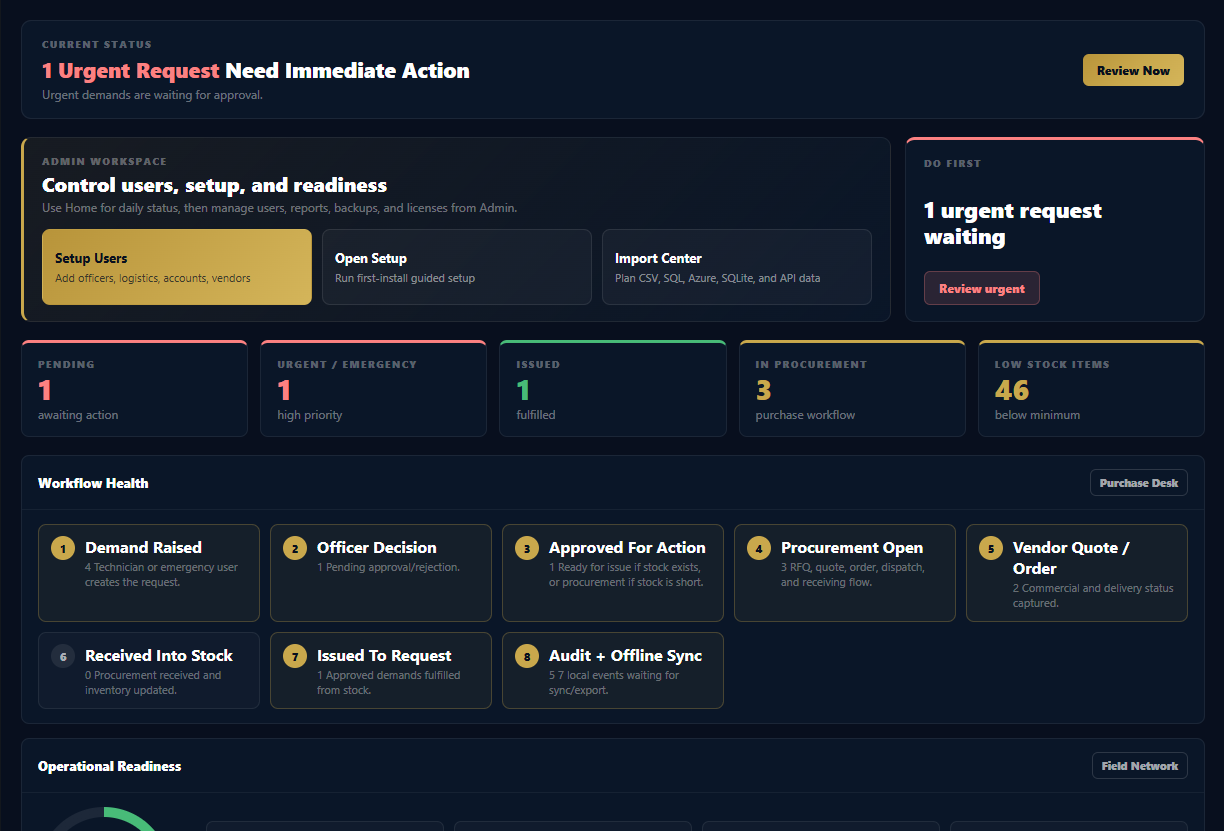
WyntIQ dashboard with operational status, readiness, pending action, and audit feed
Operations DashboardUse this screen first. It shows the next operational action, critical stock, workflow health, readiness, and recent audit events.

Activate trial or paid access.

Online activation

  1. Open License from the admin menu.
  2. Paste the activation code provided by WyntIQ.
  3. WyntIQ verifies the license and stores the local signed license token.

Offline activation

  1. Generate an offline activation request from the License screen.
  2. Send the request to your WyntIQ contact through the approved channel.
  3. Import or enter the offline activation code returned by WyntIQ.
A standard trial lasts 7 days unless an extension or paid license is issued. Expired trials may move into read-only or paused mode depending on the build.
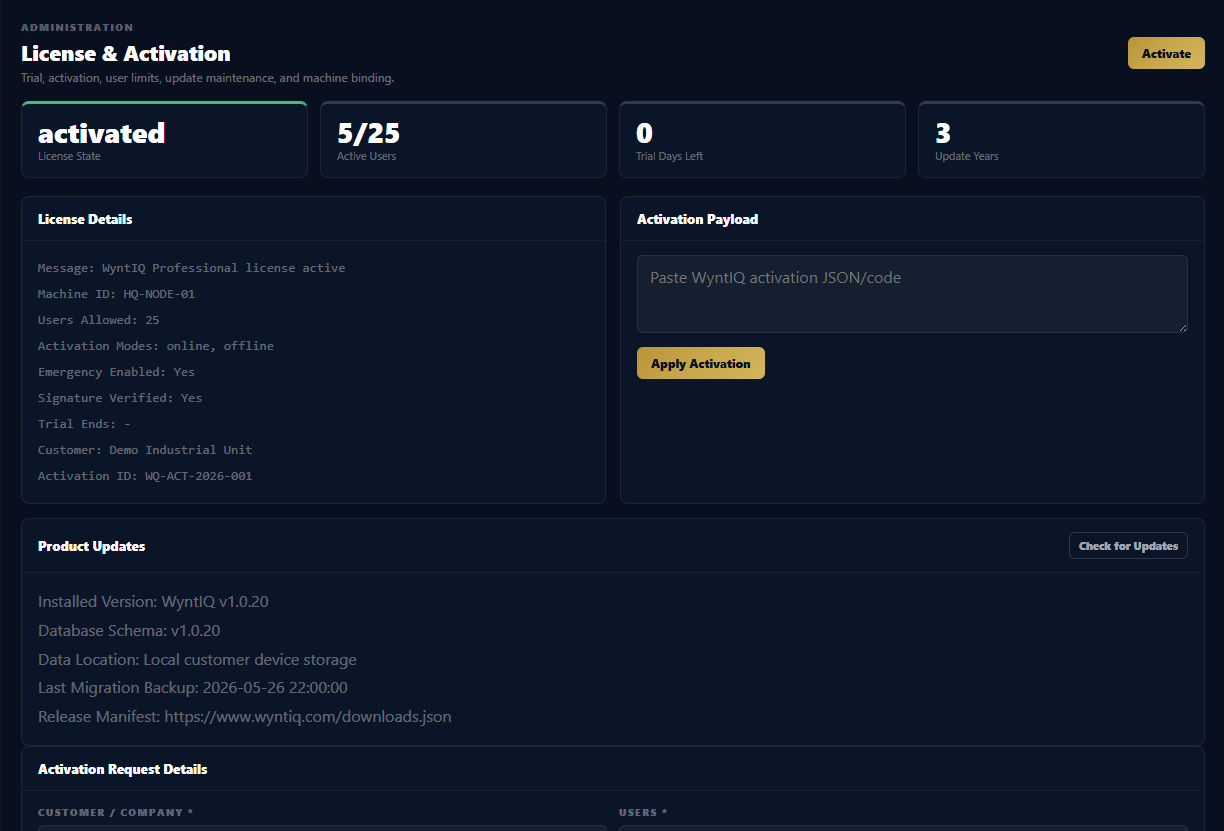
WyntIQ license and activation screen showing activation state and machine binding
License and ActivationMatches this section: activation state, users allowed, maintenance years, machine ID, signed license details, and update status.

Understand roles before adding data.

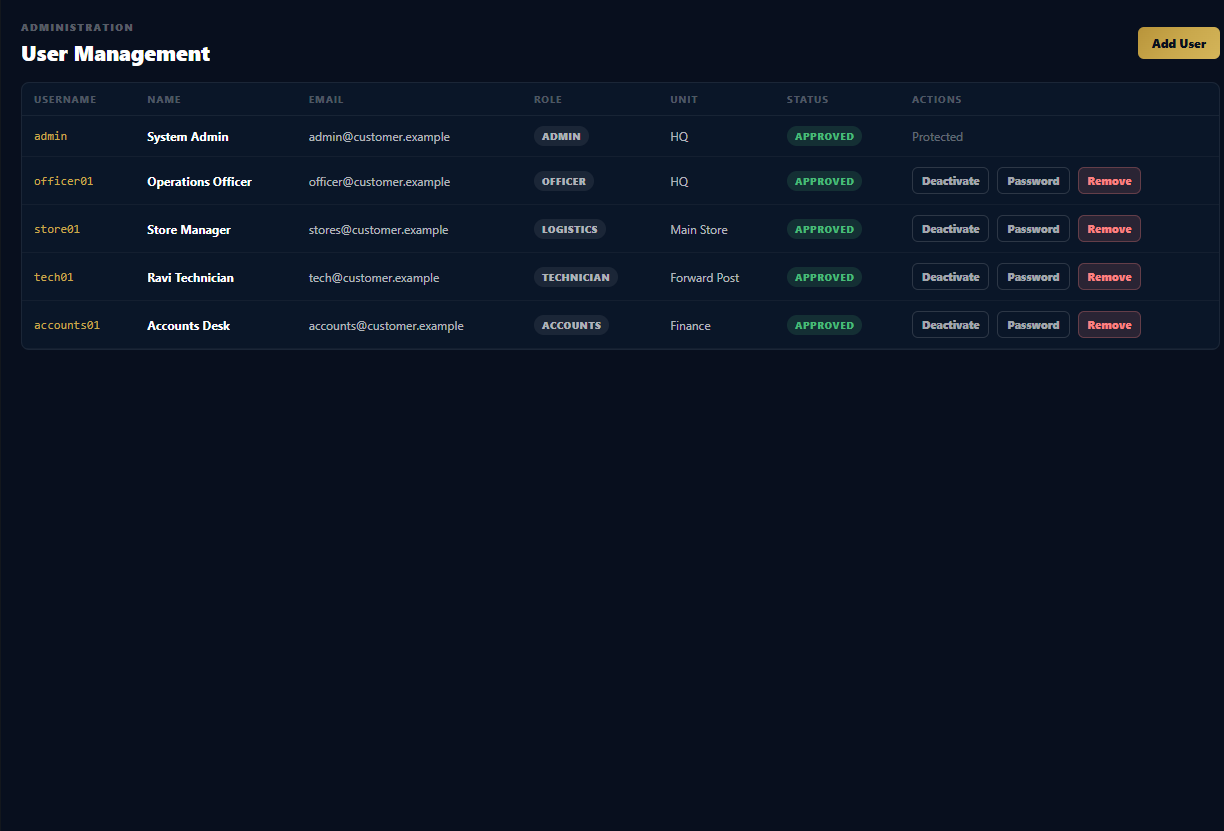
  • Administrator: manages configuration, users, roles, license status, reports, backups, and activation.
  • Officer / Manager: approves, rejects, and reviews operational activity.
  • Logistics user: manages stock, issues, receipts, and demand movement.
  • Technician / field user: raises requests, scans QR tags, and records field events.
  • Accounts user: prepares quotations, invoices, and payment follow-up.
  • Vendor user: updates quote, dispatch, delivery, and availability information where enabled.
WyntIQ user management screen with admin, officer, logistics, technician, and accounts roles
User ManagementMatches this section: create named users, assign roles, control active status, and manage customer access.

Manage stock and availability.

  1. Add or import item records with part name, category, location, quantity, and minimum stock threshold.
  2. Use stock status views to identify low-stock, out-of-stock, and healthy items.
  3. Record receipts, issues, transfers, and adjustments through the approved workflow.
  4. Use notes and references to preserve operational context for later review.
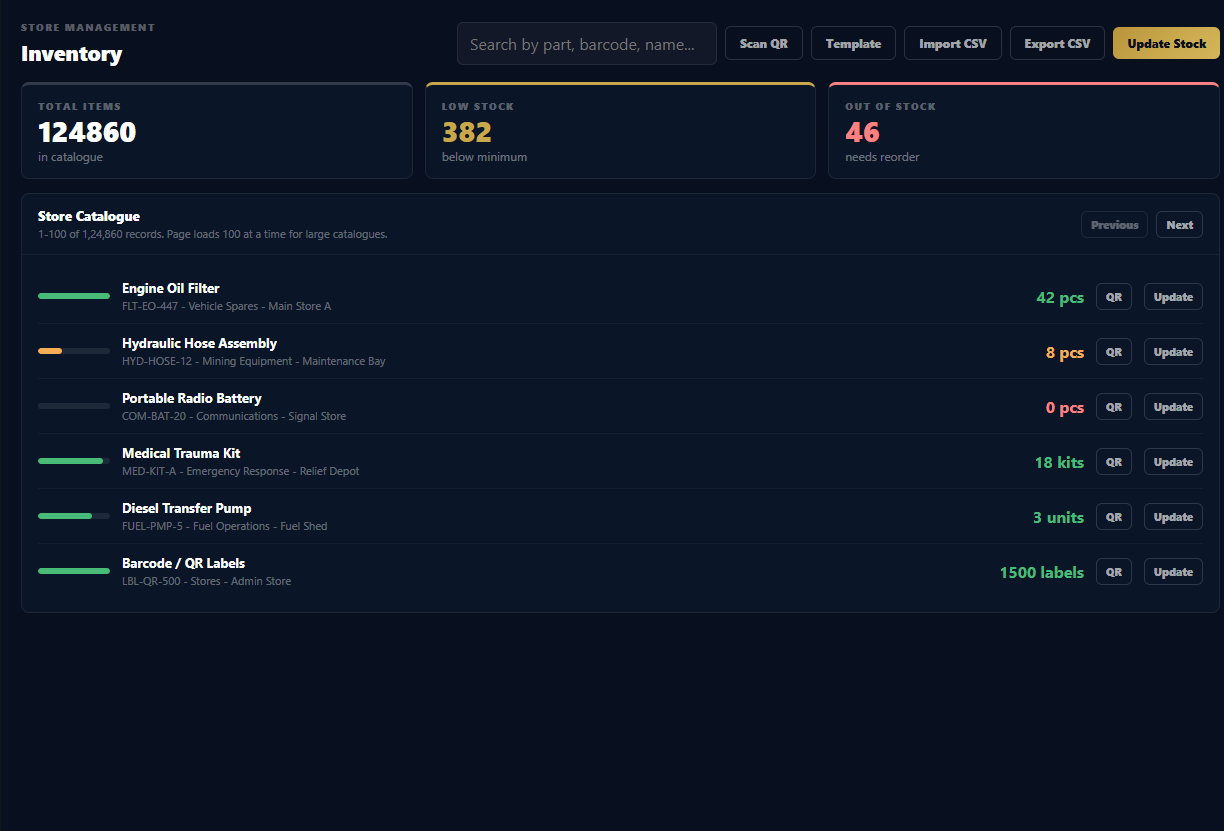
WyntIQ inventory catalogue screen with stock levels, CSV import, export, and QR scan controls
Inventory ControlMatches this section: item search, stock level cards, low/out-of-stock visibility, CSV import/export, and large-catalogue paging.

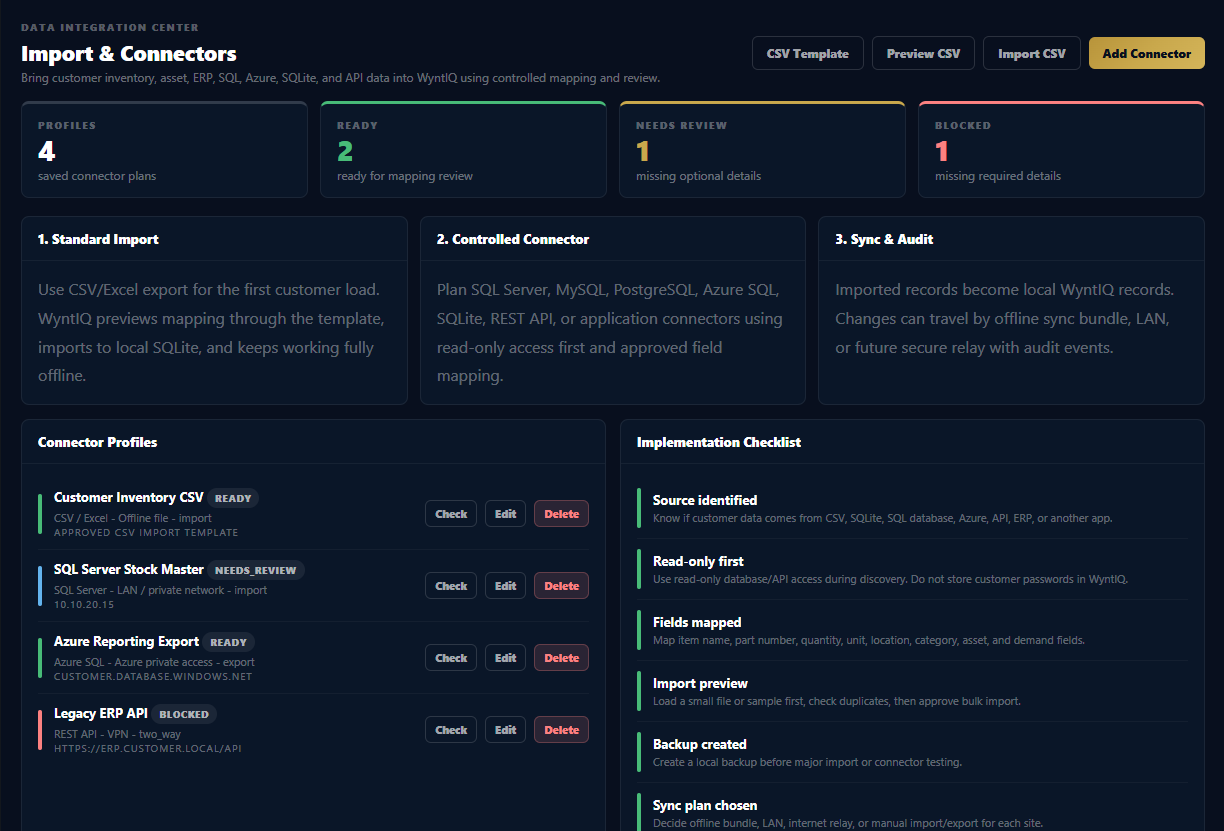
Bring customer data into WyntIQ safely.

  1. Start with CSV or Excel import for the first controlled customer load.
  2. Plan SQL Server, SQLite, Azure SQL, REST API, ERP, or application connectors with customer IT.
  3. Use read-only access first, map fields, preview records, and back up before bulk import.
  4. Keep passwords and API secrets in the approved customer vault or secure admin process.
WyntIQ import center showing connector profiles and implementation checklist
Import and ConnectorsMatches this section: CSV, SQLite, SQL, Azure, API, connector profiles, mapping checklist, and readiness checks.

Raise, approve, and issue demands.

  1. Create a demand with item, quantity, urgency, requester, location, and reason.
  2. Approvers review the demand and either approve, reject, or request clarification.
  3. Logistics users issue stock when available or mark demand status for procurement or transfer.
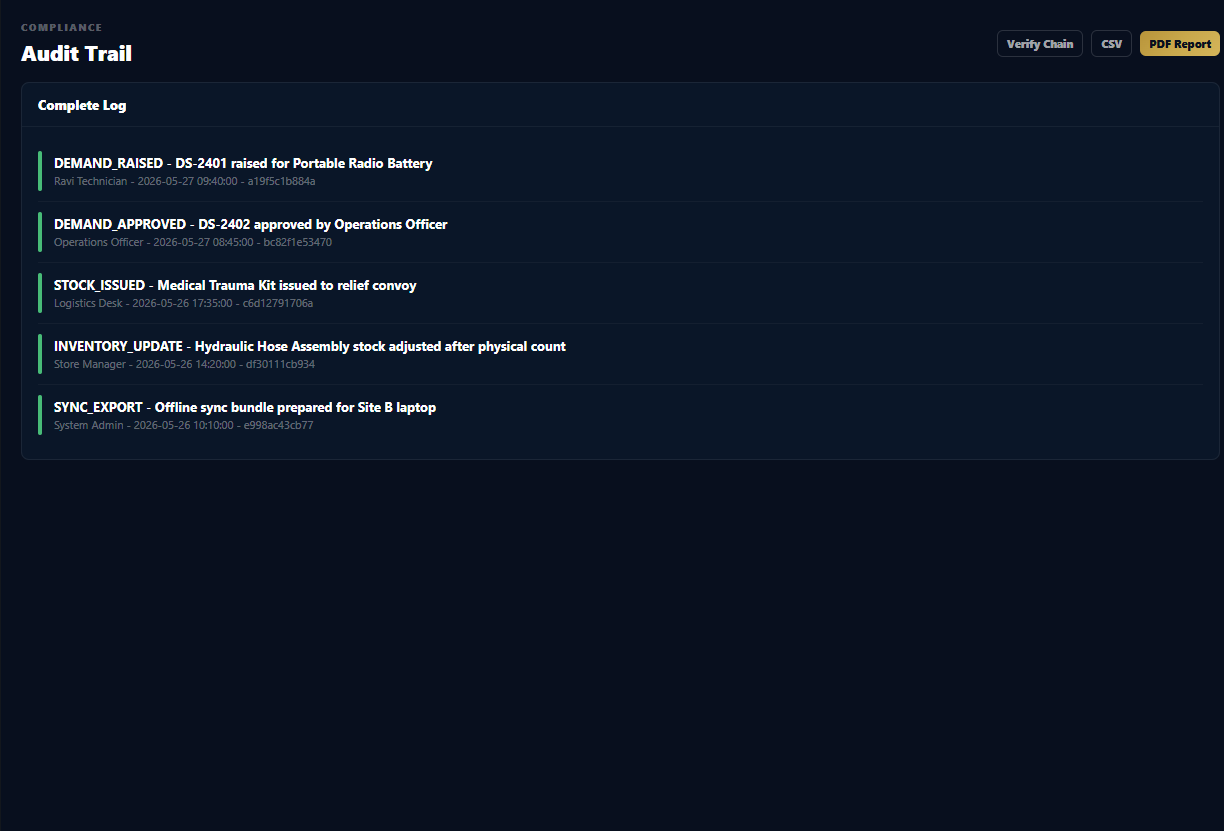
  4. The audit trail records who raised, approved, issued, or modified the demand.
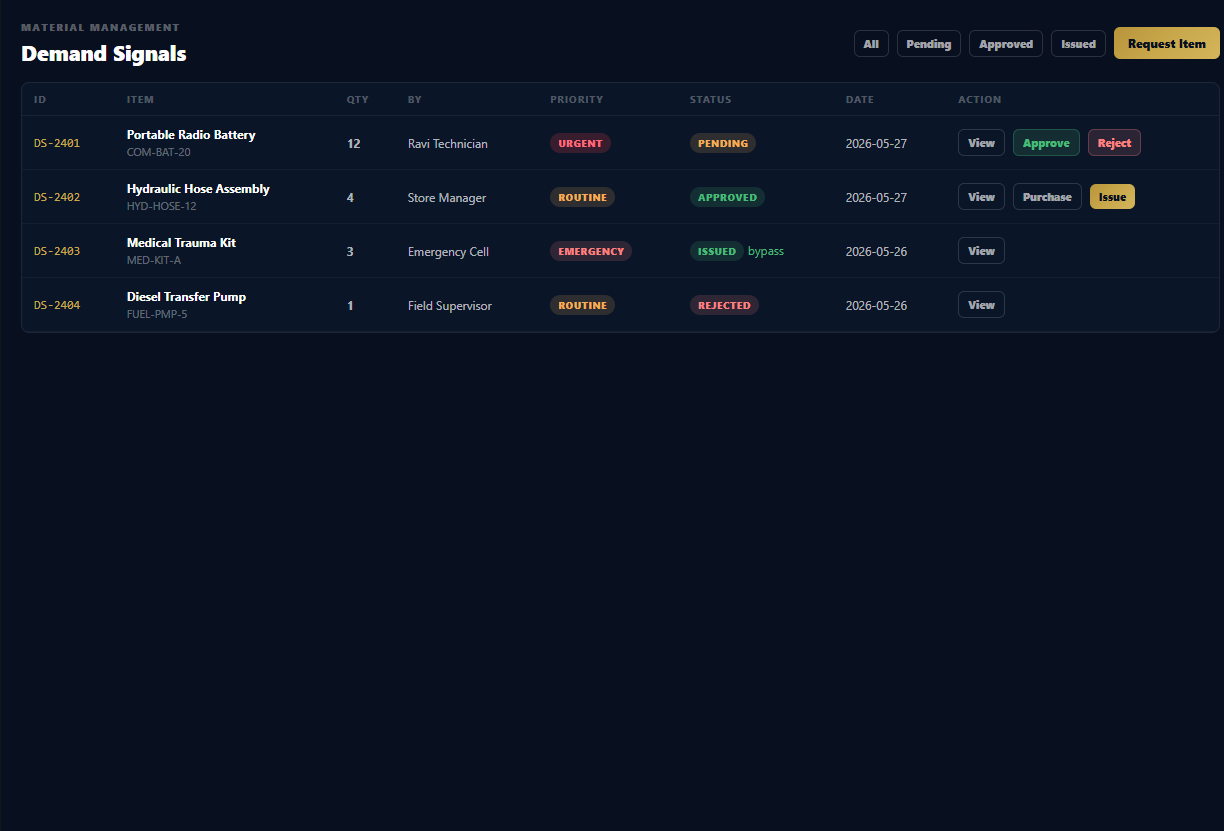
WyntIQ demand signals screen showing pending, approved, issued, and rejected requests
Demand SignalsMatches this section: pending approvals, urgent requests, approved issue actions, rejected requests, and full demand status visibility.

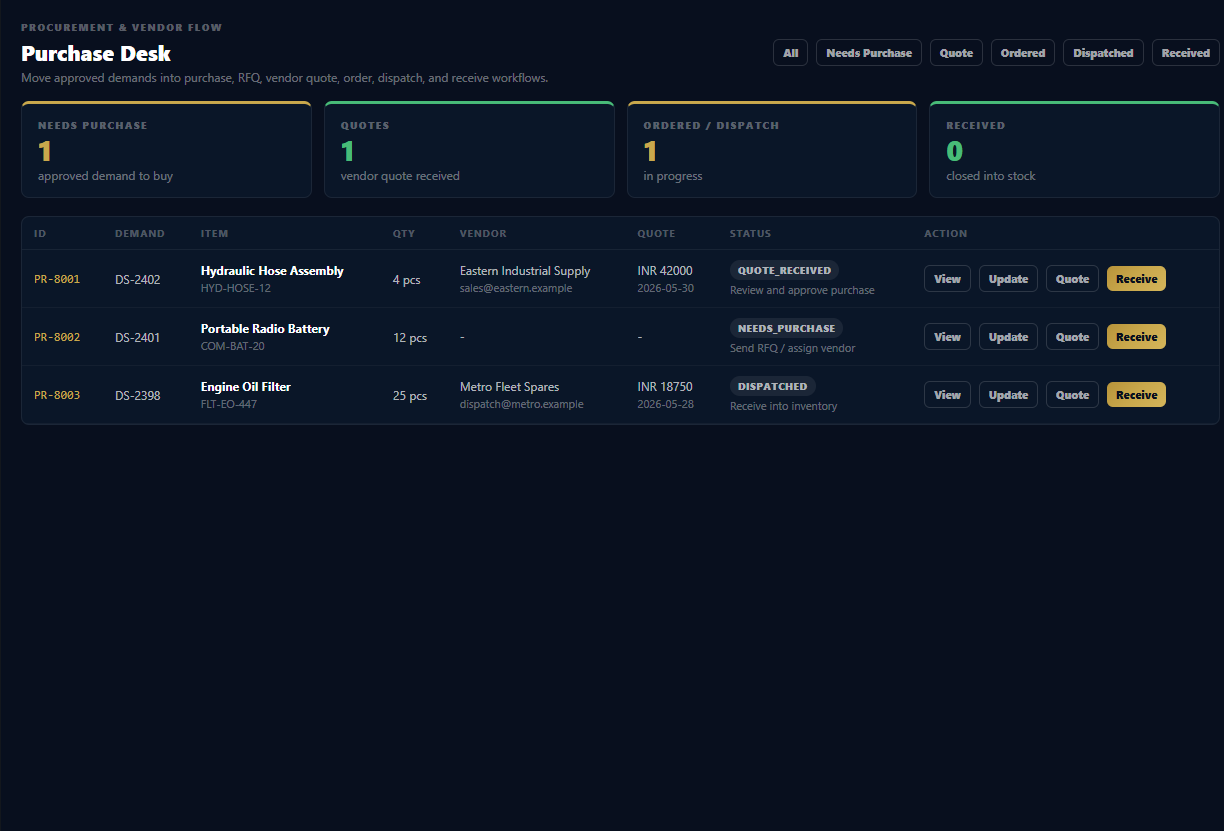
Move approved needs into purchasing and billing.

  1. Move approved demands into purchase, RFQ, quote, order, dispatch, and receive workflows.
  2. Record vendor quote details, expected delivery, and receipt status.
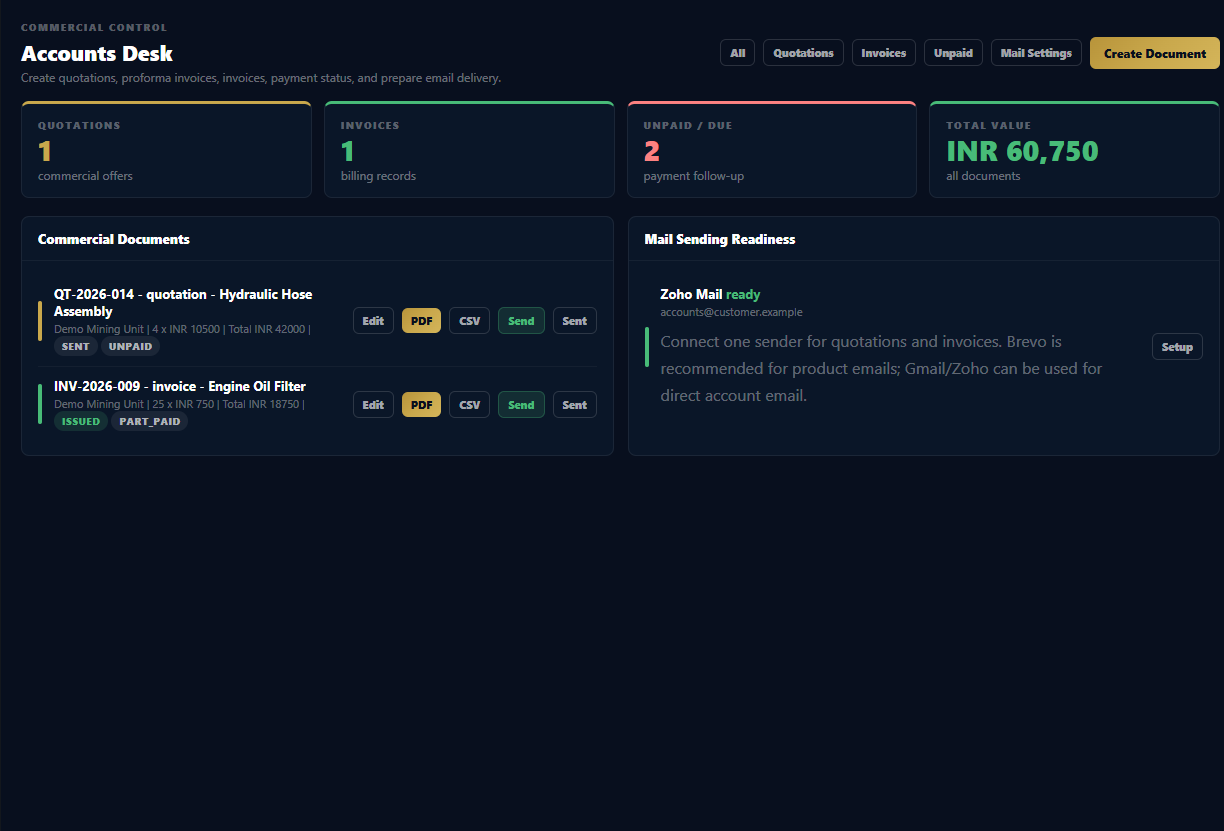
  3. Create quotations, proforma invoices, invoices, and payment follow-up from the Accounts desk.
  4. Use email readiness only after the customer sender account is configured.
WyntIQ procurement desk showing RFQ, quotes, orders, dispatch, and received workflow
Purchase DeskProcurement screen: approved demand to RFQ, vendor quote, order, dispatch, receive, and stock update flow.
WyntIQ accounts desk showing quotations, invoices, payment status, and mail readiness
Accounts DeskAccounts screen: quotations, invoices, payment status, PDF/CSV export, email readiness, and sent email history.

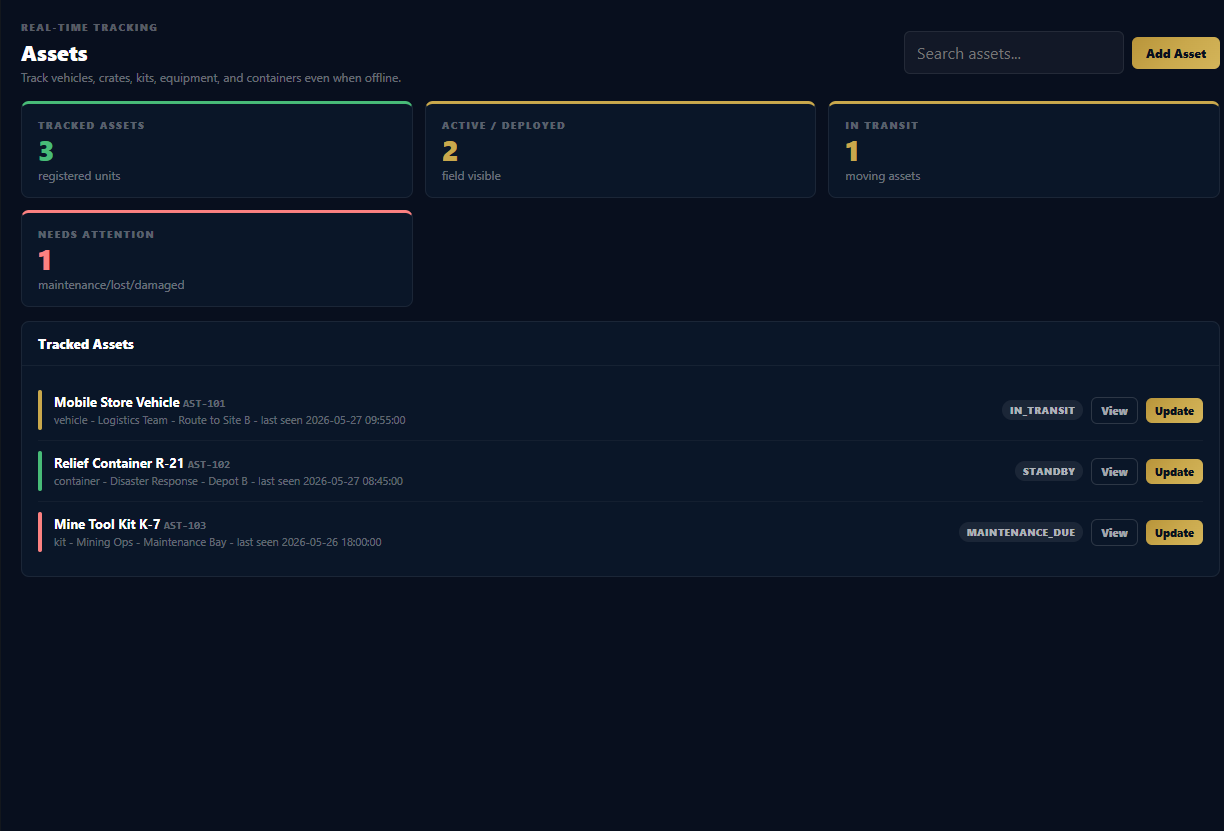
Track assets with physical identity.

  1. Create asset records for vehicles, kits, crates, equipment, tools, or critical items.
  2. Assign custodian, location, serviceability status, and last known movement.
  3. Generate or attach QR tags where supported.
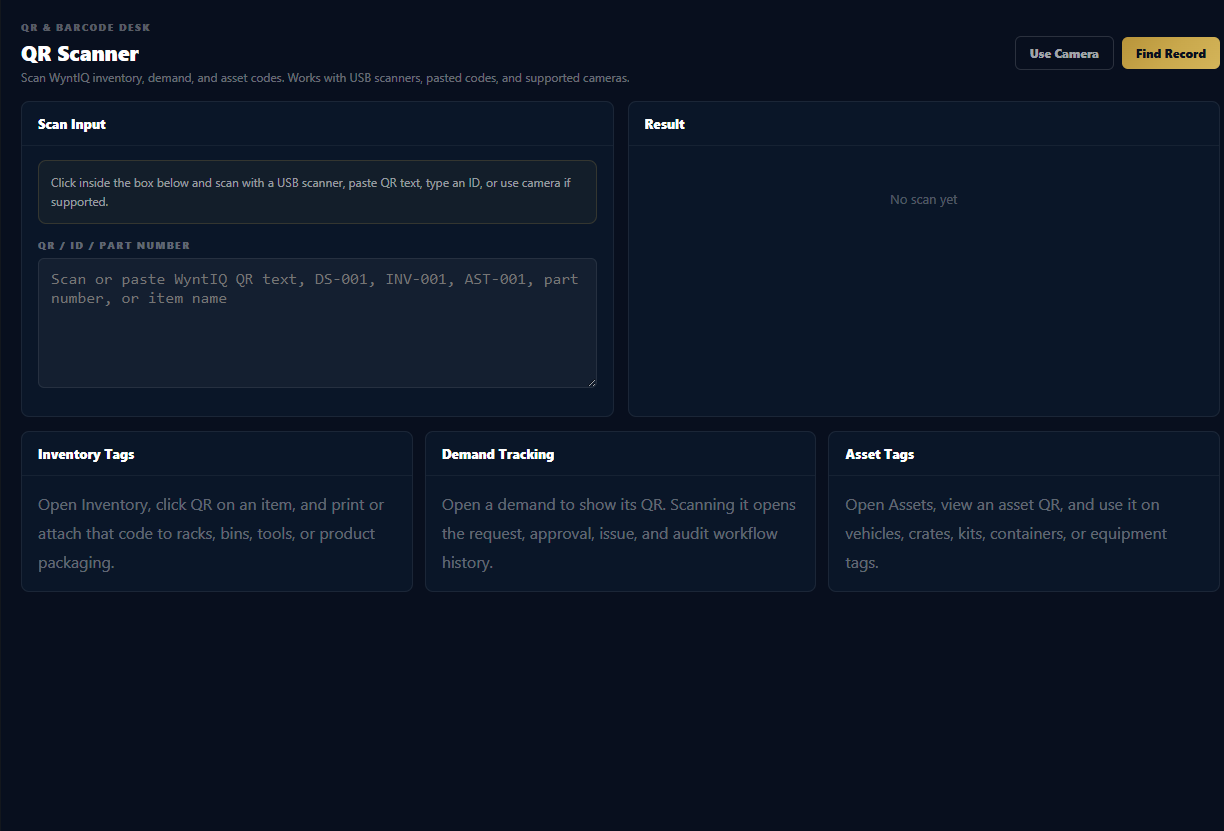
  4. Scan QR tags to verify item identity, update status, or open the asset record quickly.
WyntIQ assets screen showing tracked vehicles, containers, kits, status, custodian, and location
Asset TrackingAssets screen: vehicles, containers, kits, current status, assigned unit, custodian, location, and last seen time.
WyntIQ QR scanner screen for inventory, demand, and asset code lookup
QR ScannerScanner screen: USB scanner input, pasted QR text, camera support where available, and lookup results for inventory, demand, or asset records.

Review accountability and readiness.

  • Use audit logs to review important actions by user, role, time, and record.
  • Use readiness views to understand stock, assets, backlog, and operational risk.
  • Export reports only when allowed by your role and organisation policy.
  • Keep operational comments clear so later reviews understand why decisions were made.
WyntIQ audit trail screen showing event history and verify chain controls
Audit TrailAudit screen: complete event log, chain verification, CSV export, and PDF report controls.
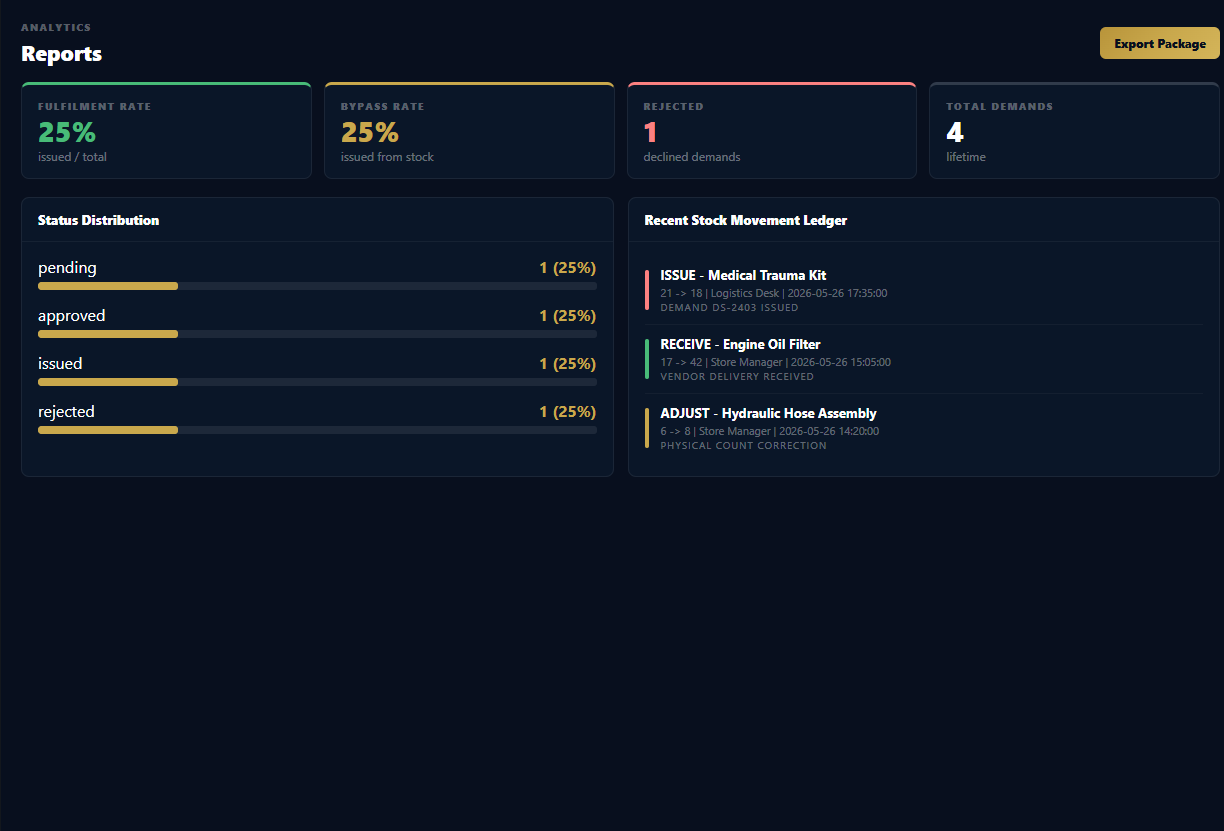
WyntIQ reports screen with fulfilment rate, bypass rate, demand distribution, and stock ledger
ReportsReports screen: fulfilment rate, rejected/bypass rates, demand distribution, and recent stock movement ledger.

Use WyntIQ when connectivity is limited.

  1. Continue recording approved local activity while offline if your deployment supports it.
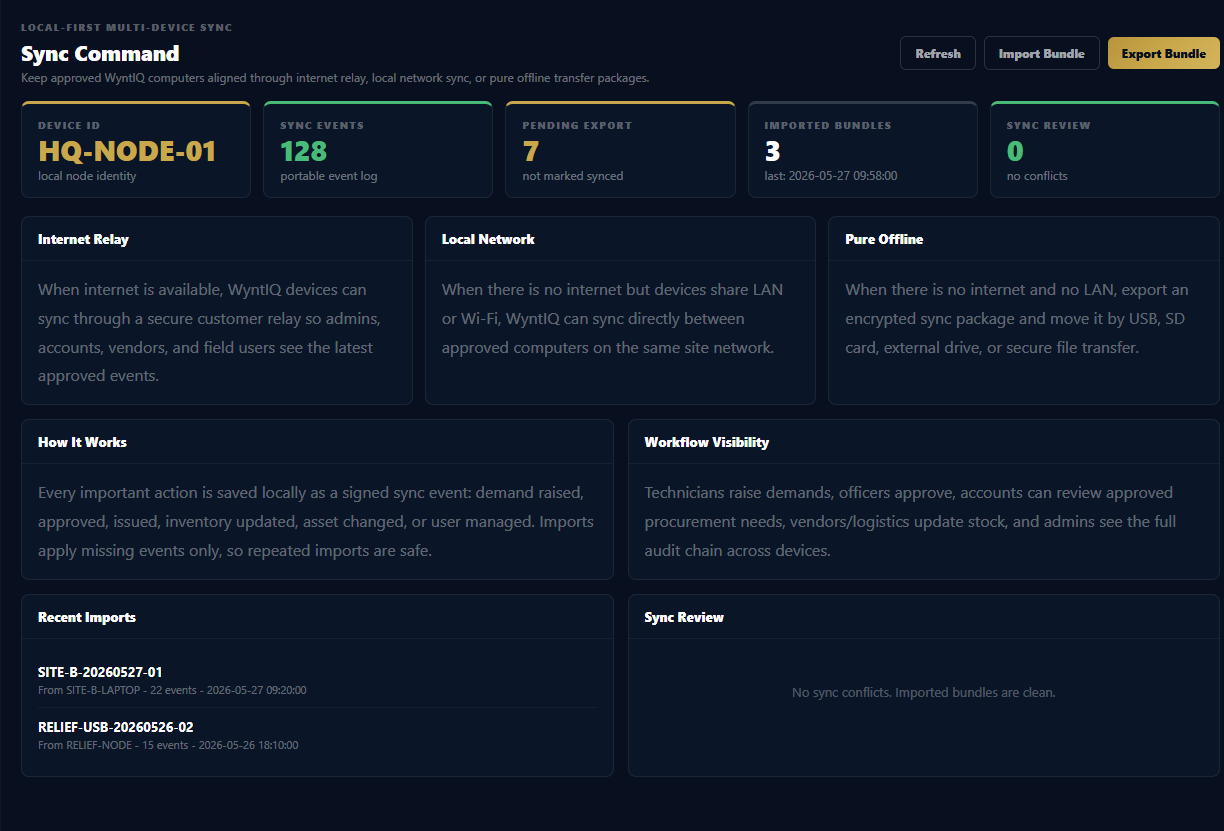
  2. Check sync diagnostics for pending events, node health, and last successful synchronization.
  3. Use approved fallback transfer methods only if configured for your organisation.
  4. When connectivity returns, review sync status before relying on central dashboards.
Offline-first does not mean careless data handling. Follow your organisation's policy for device security, backups, exports, and transfer media.
WyntIQ offline sync command screen showing internet relay, local network, offline bundles, imports, and sync review
Offline SyncMatches this section: internet relay, local network, pure offline bundles, imported bundles, pending events, and sync review.

When to contact support.

  • Activation code is expired, rejected, or tied to the wrong device.
  • Trial has expired and you need an extension or paid conversion.
  • Users cannot access the correct role or workflow.
  • Sync diagnostics show repeated failures or pending events are not clearing.
  • You need deployment planning for production use.
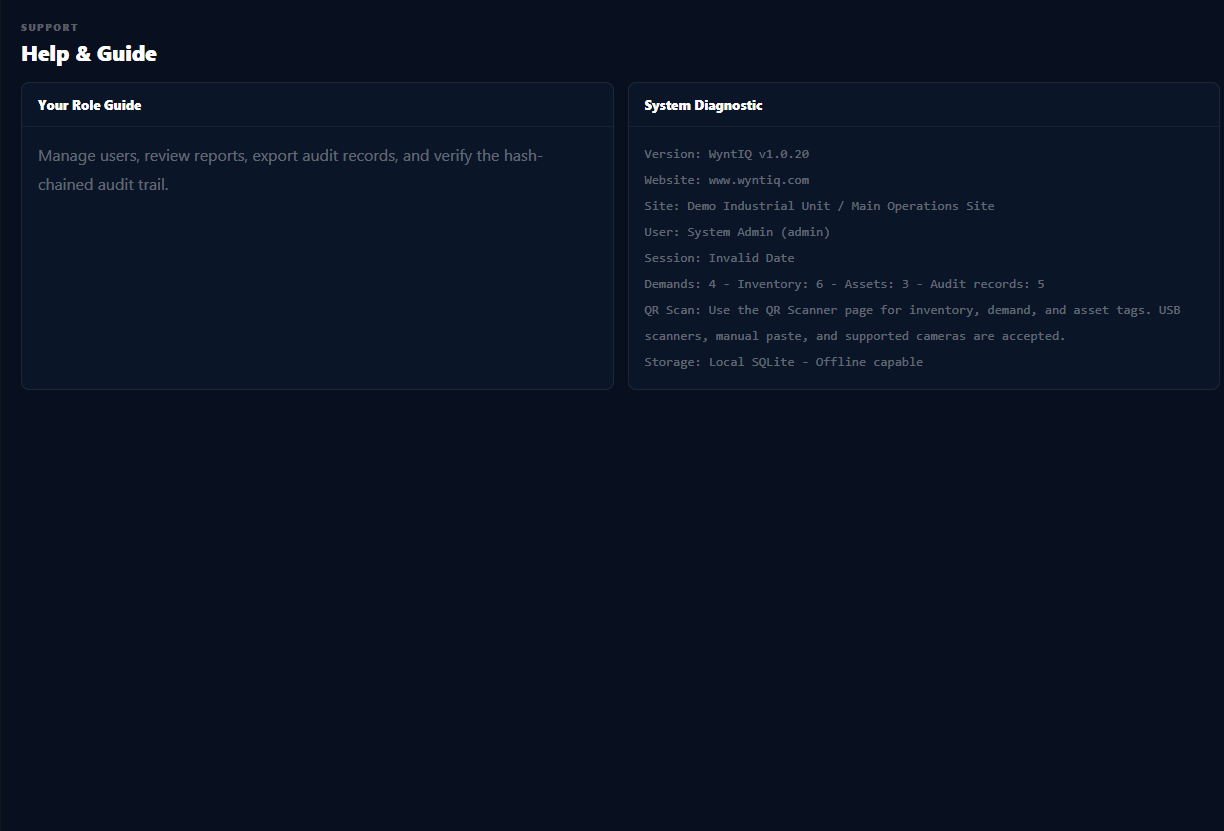
WyntIQ help screen showing role guide and system diagnostic
Help and DiagnosticsSupport screen: role-specific guidance, system diagnostic, license state, active user, sync events, and machine health.

Real WyntIQ screens from the desktop product.

Review the working product areas buyers usually ask to see first: operations dashboard, inventory control, demands, procurement, accounts, integrations, assets, and offline sync.

Need guided onboarding?

Tell us your sector, users, and deployment environment. We can walk your team through the workflows that matter most.